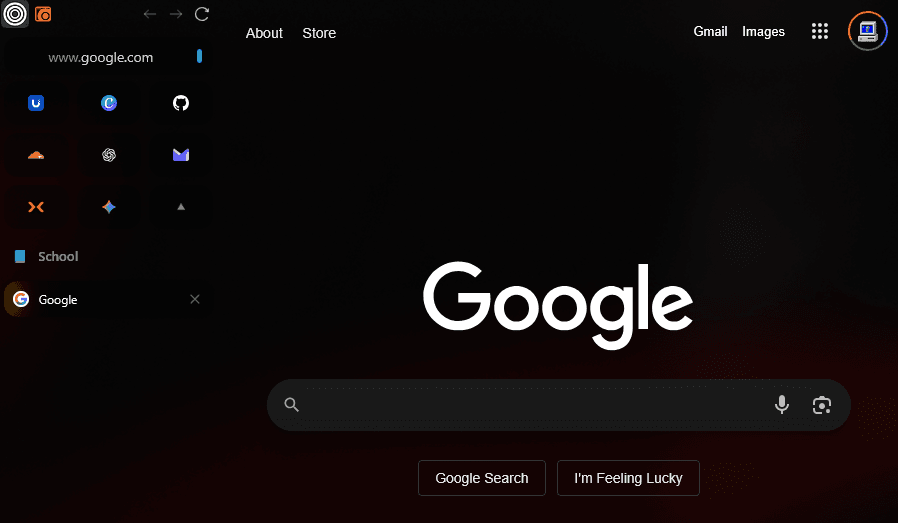
Requirements
Before starting, ensure you have:
- Mica For Everyone - Windows transparency tool
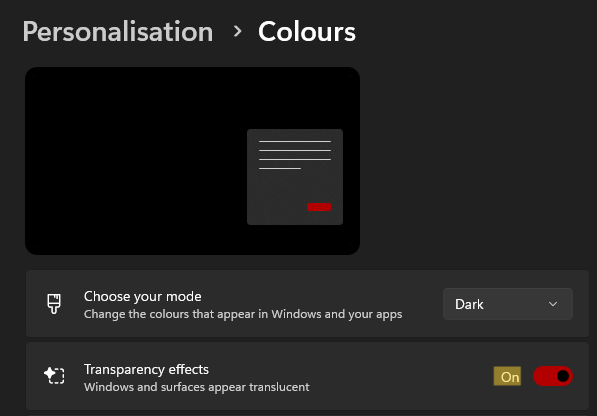
- Transparency Effects Enabled in Windows settings - Windows system setting
- Zen Browser - The modern Firefox-based browser
Setting Up the Chrome Folder
Creating the Profile Directory
The first step is creating the chrome folder for custom themes:
Watch: How to create chrome folder
This folder will contain all the theme files needed for transparency.
Installing the Nebula Theme
Downloading the Theme
- Visit the GitHub Repository: Zen-Nebula by JustAdumbPrsn
- Download the chrome.zip file from the latest release
Theme Installation
Watch: How to put Theme in folder
Follow the video guide to properly install the theme files in your chrome folder.
Browser Configuration
About:Config Settings
- Navigate to
about:configin Zen Browser - Search for
browser.tabs.allow_transparent_browser - Set the value to
trueif the option is visible
This setting enables transparency support at the browser level.
Mica For Everyone Configuration
Windows Settings Preparation
Important: If you have "Show Accent color on title bars and window borders" enabled in Windows 11 settings, please disable it for transparency to work properly.

Process Rule Configuration
-
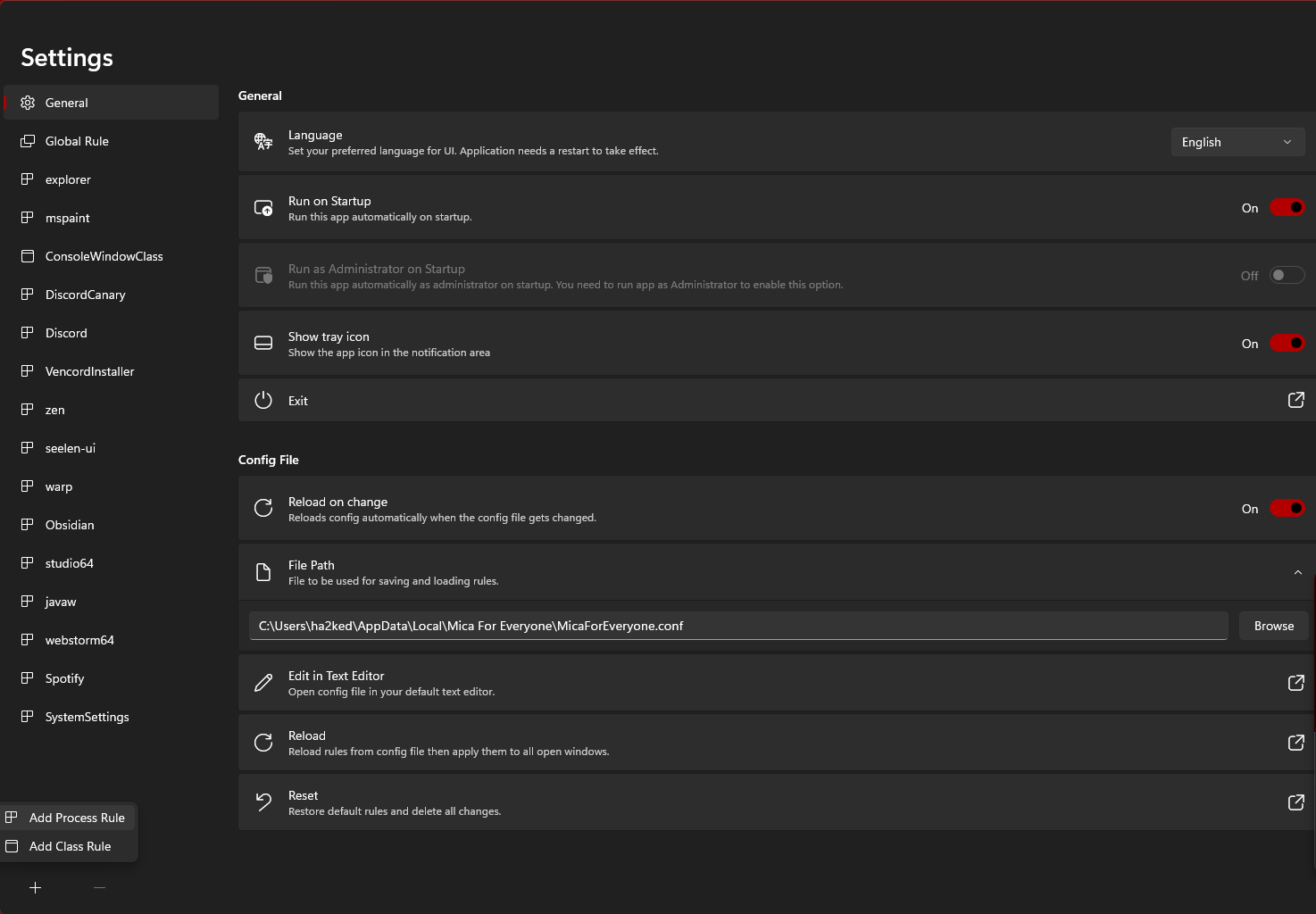
Create a Zen Process Rule
- Note: Make sure the "Z" is not capitalized (use "zen" not "Zen")
- Note: Make sure the "Z" is not capitalized (use "zen" not "Zen")
-
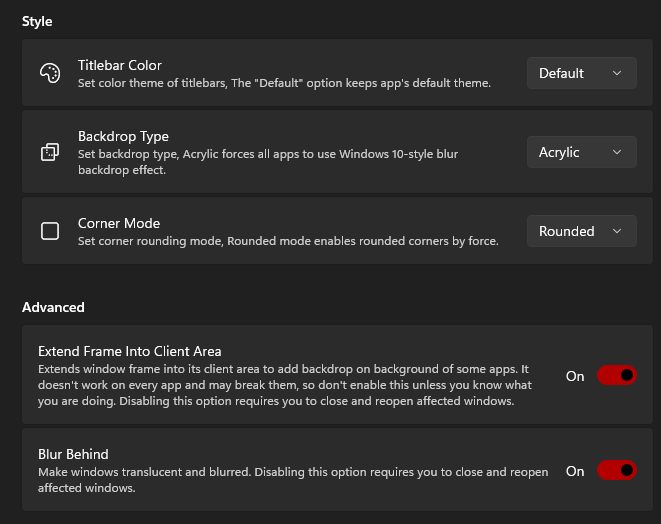
Apply Transparency Settings
- Configure these specific rules for Zen Browser
- Configure these specific rules for Zen Browser
Theme Color Contrast
Important: Set your Zen theme color contrast to 0 for optimal transparency appearance.

Optional Enhancement: Zen Internet Extension
Website Transparency
For an even more immersive experience, install the Zen Internet Extension.
This extension provides transparency effects on most websites, creating a cohesive transparent browsing experience.
Advanced Configuration
Fine-tuning Transparency
- Adjust Mica For Everyone opacity for different lighting conditions
- Experiment with different desktop backgrounds to find the perfect combination
- Configure per-site transparency using the Zen Internet extension
Performance Optimization
- Monitor system resources when using transparency effects
- Adjust transparency levels if you experience performance issues
- Consider disabling transparency for resource-intensive web applications
Troubleshooting
Common Issues
-
Browser not transparent?
- Verify the chrome folder is in the correct location
- Check that Mica For Everyone is running with proper permissions
- Ensure Windows transparency effects are enabled
-
Theme not loading?
- Restart Zen Browser completely
- Verify the theme files are properly extracted
- Check the about:config setting is enabled
-
Performance problems?
- Reduce transparency opacity levels
- Disable the Zen Internet extension temporarily
- Close unnecessary browser tabs
Compatibility Notes
- Works best on Windows 11 with native transparency support
- Windows 10 may require additional configuration
- Some websites may not display correctly with transparency
Customization Tips
Desktop Integration
- Choose complementary wallpapers that work well with transparency
- Organize desktop icons to avoid visual clutter
- Use matching transparent themes for other applications
Theme Modifications
- Edit CSS files in the chrome folder for custom styling
- Adjust color schemes to match your desktop aesthetic
- Create backup copies before making modifications
Credits
This guide is based on the excellent work by:
- JustAdumbPrsn for the Zen-Nebula theme
- The Zen Browser team for transparency support
- The Mica For Everyone developers for the transparency tool
Maintenance
Keeping Your Setup Updated
- Check for theme updates regularly on GitHub
- Update Zen Browser to maintain compatibility
- Backup your chrome folder before major updates
Reverting to Default
If you need to remove transparency:
- Delete or rename the chrome folder
- Disable the process rule in Mica For Everyone
- Restart Zen Browser to apply default settings